



 Published: November 25, 2021
Table of Contents
How to open File Explorer (fastest way)
File Explorer in Windows 11 can be opened from the taskbar, the Start menu, or by using a keyboard shortcut. The fastest way to open File Explorer is to press Windows key + E. You can also click the folder icon on the taskbar or open it from the Start menu under All apps.
Quick ways to open File Explorer in Windows 11:
- Press Windows + E on your keyboard
- Click the File Explorer (folder) icon on the taskbar
- Open Start > All apps > File Explorer
- Right-click the Start button and select File Explorer
Where is the File Explorer in Windows 11?
In Windows 11, File Explorer is in the taskbar at the bottom of the screen. If your computer has the default look to Windows 11, it is represented by a yellow folder.

What is File Explorer in Windows 11?
File Explorer in Windows 11 is the built-in tool for viewing, opening, organizing, and managing files and folders on your computer. It allows you to access documents, pictures, downloads, external drives, and network locations from one place, making it easier to find, move, copy, and delete files.
You can use File Explorer to:
- Browse files and folders stored on your PC
- Manage files on USB drives and external storage
- Search for files quickly using the built-in search bar
- Create, rename, move, and delete files and folders
What are the different parts of File Explorer?
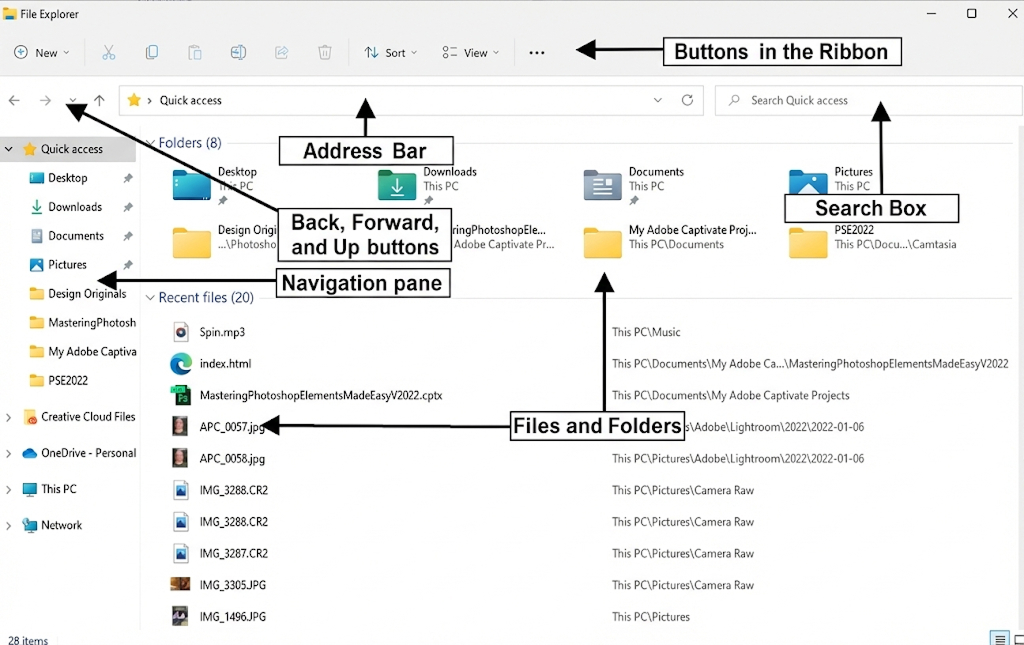
File Explorer in Windows 11 consists of several key parts that help you navigate, find, and manage files efficiently. Each section has a specific purpose and works together to make file management easier.
1. Command bar
Located at the top, the command bar contains common actions such as New, Cut, Copy, Paste, Rename, Share, and Delete. It replaces the older ribbon with a simpler, icon-based layout.
2. Address bar
The address bar shows your current folder location and lets you quickly jump to parent folders or type a file path directly.
3. Search box
Found in the top-right corner, the search box allows you to search for files and folders within the current location or across your entire PC.
4. Navigation pane
On the left side, the navigation pane provides quick access to frequently used locations such as Quick Access, Desktop, Documents, Downloads, This PC, and connected drives.
5. File and folder view area
This is the main section where files and folders are displayed. You can change how items appear using different views like Icons, List, or Details.
How do I start File Explorer in Windows 11?
There are several ways to start it.
- Double-click or tap on the File Explorer icon from your desktop. This will open the application.
- Click the Start button or the Start key on your keyboard, then type in File Explorer. Windows will automatically find the application, and then you can press Enter or click on the icon to start it (Note: you will only have to type part of the word file as Windows knows what you are looking for).
- Right-click on the icon, then select an item from the right click list. You can either open a recently edited document, a folder/file saved as a shortcut, or open another instance (window) of File Explorer.
- There are also other ways to access File Explorer, such as through open/save dialog boxes and from Internet browsers.
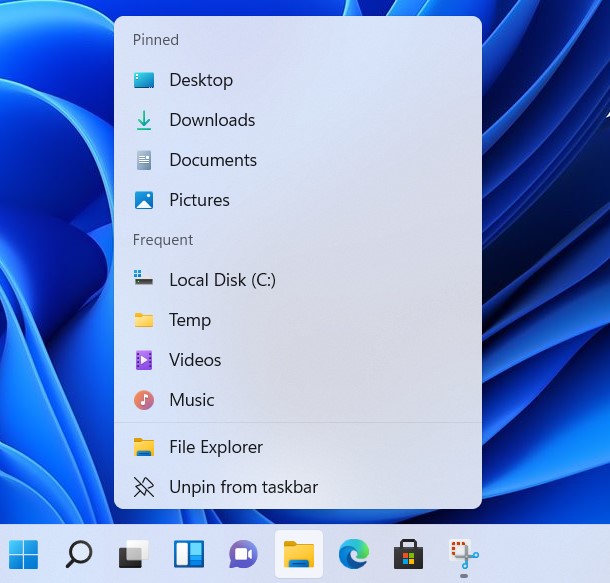
Screen Shot Of Windows 11 File Explorer Right Click
How Do I Manage Files in File Explorer?
Once opened, by default, File Explorer displays the structure of the computer in a hierarchical, tree structure in a window on the left, starting with Quick Access. In this listing are files or folders pinned to Quick Access, then a listing of file storage resources such as your local Documents folder, cloud folders, OneDrive folders, local PC folders, then mapped network drives (in that order).
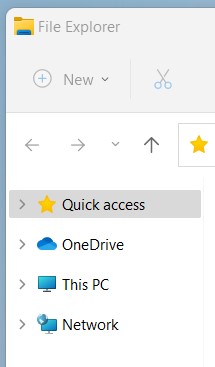
Screen Shot Of Windows 11 File Explorer Left Pane
You may drag and drop files and folders from any location to another. For instance, you can drag and drop files from your local Documents folder to a shared folder in Teams or SharePoint.
Power User Tip: Pressing the ctrl key while dragging will change the drag mode from move to copy.
If you don’t like the less precise drag and drop method, you can copy and paste (copy the file) or cut and paste (move the file) from one location to another. In Windows 11, you no longer right click on the file or folder to get to copy/cut/paste, you just single left click on the file (or tap and hold for a second to select the file), then click on the toolbar cut/copy/paste icons.
Power User Tip: You can also use keyboard shortcuts for file operations. Microsoft has a support page for keyboard shortcuts in Windows.
- Power User Tip: Go look at the shortcuts for the Start button. Bet you haven’t seen these before. Try the Start + (.) period. Emojis!

Screenshot Of The Windows 11 File Explorer Toolbar
In addition to moving or copying files, you can also rename, share, or delete a file or folder from the toolbar.
Sometimes it is easier to manage files if you can see the file extension. By default, displaying the extension of the file is off. To turn it back on, click on View -> Show -> File name extensions.
What is Quick Access?
Quick access is a special listing of links to files or folders you frequently access and can be a big time-saver. By default, Windows 11 pins the Desktop, Downloads, Documents, Pictures, Music, and Videos to the Quick Access listing. To remove any of these, right-click on the item, then select “Unpin from Quick access”.
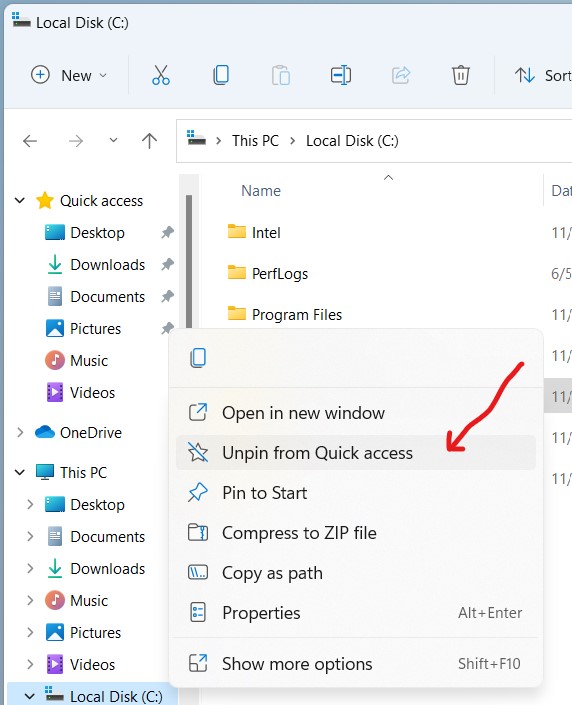
Screenshot Of Windows 11 File Explorer Unpin Menu
To add a file or folder to Quick access, right-click on the file or folder (no matter where it is) and select “Pin to Quick access”.
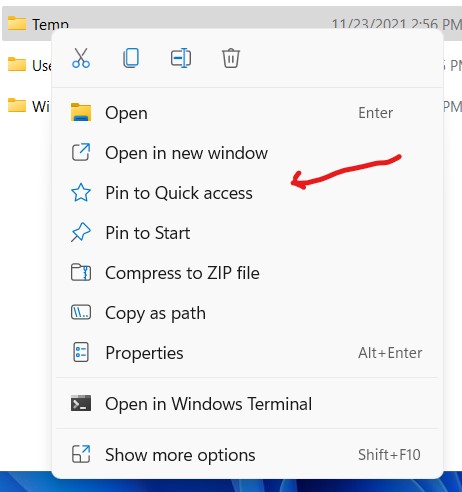
Screenshot Of The Windows 11 File Explorer Pin Menu
How Do I Search for Files?
If you know the location of the file you are looking for, open File Explorer and navigate to the folder. In the upper right, type in either part of the file name or the content of the file you are looking for. Note that the search box lists the location it will search in (lightly greyed out) before you type anything into the box.
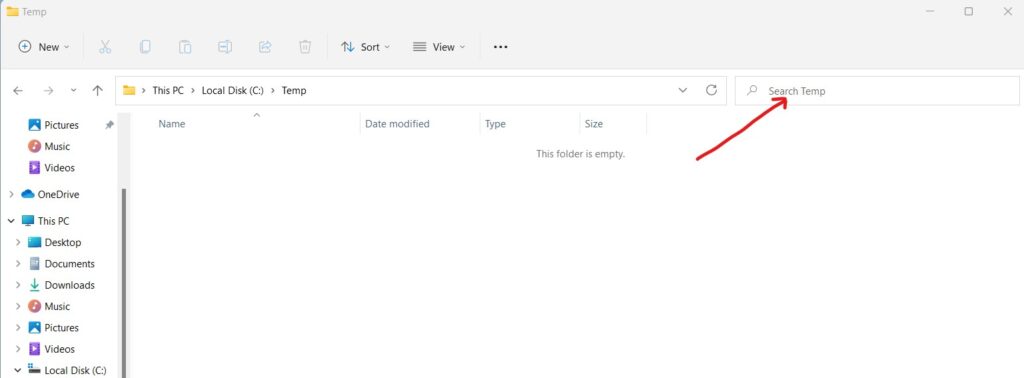
Screenshot Of The Windows 11 File Explorer Search
If you don’t know the folder location nor the device it is on, click This PC in the left window, then enter your search term in the search window. File Explorer will look in all local, network, and connected cloud services (such as OneDrive, Teams, or SharePoint). We like to call this “Super Search”.
Power User Tip: You can also access Super Search from the Start button. Click Start or press the Start button on your keyboard, and then start typing part of name of the file you are looking for. Super Search will most likely find it.
Power User Tip: If you know your file is stored in OneDrive, Teams, or SharePoint, login to the Office 365 portal and a list of recently used files will be displayed. You may also use the search feature in the portal to find your file.
How Do I Sort Files in File Explorer?
If you are looking for certain types of files in a folder (say, photographs), you can sort folder contents by file type. Open the folder, then click on the Sort drop down in the toolbar, and then select Type. Your documents will then be listed by file type (document, spreadsheet, photograph, etc.).
Alternately, you can arrange them by name, date, author, or group them. Grouping by date is handy for when you need to find the files you modified on a specific date, like last Tuesday.
How Do I Find the Path of a File in File Explorer?
File Explorer has a feature called Copy Path (it’s not new, but cool). The use case here is to send the file path to a co-worker so they can open the file. If you single-click on the file and then select from the ellipses in the toolbar and select Copy path, this will copy the entire path of the file to the clipboard so you can send it to a colleague.
Snap Layouts and Snap Groups
Finally, there is a new feature in Windows 11 which allows you to arrange windows on the screen in a number of unique ways called snap layouts and snap groups. To demo this feature, we are going to open four instances of File Explorer and then use the new feature to group them.
- Open four instances of File Explorer. Right-click on the yellow File Explorer icon and click it four times.
- Hover your mouse over the maximize button in the upper right. The view will change to four different layouts. Select the four-grid layout, then click on each instance of File Explorer. This will put each instance into one of the four grids automatically, saving you from having to manually size the windows yourself.
- Once you do this, it saves the snap layout to a snap group. When you hover your mouse over the File Explorer icon on the desktop, it shows individual instances, plus all the grouped items. This is a fast way to bring all four of the instances to the “top” of your desktop at the same time.
- This will take some practice! Give it a try and play around with it. If you have multiple, very large monitors, it can save a lot of time and make you more productive.
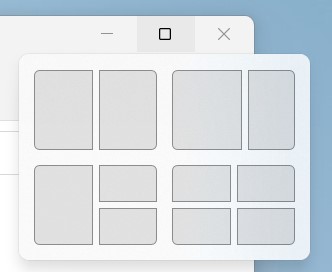
Screenshot Of Windows 11 Snap Layouts
How to get help with File Explorer in Windows 11?
If you are still having trouble opening or using File Explorer in Windows 11, visit Microsoft’s Support Page here. On the support page, you can find answers to common questions and message Microsoft directly.
What to try if File Explorer won’t open
Here are some things to try if File Explorer won’t open.
Check for updates
Select Start > Settings > Windows Update . Then select Check for updates. Install any available updates and restart your device if required.
Restart your device
Even if you don’t see updates that require restarting, doing so ensures that any pending updates are installed.
Reset your PC
If you’ve tried the previous steps and File Explorer still isn’t starting or opening, resetting your PC might help. To learn how, see Reset or reinstall Windows.
Other common problems with File Explorer and how to remediate
If you experience any of the following problems, you may need to install an update through Microsoft (which can be found here)
-
Inability to empty the Recycle Bin or delete files and folders located within it
-
Errors when renaming or moving files, including messages stating that the file or folder does not exist
-
Failures when copying, moving, renaming, or deleting files on a network share due to network or file permission errors
-
Incorrect, missing, or reset View settings and folder customizations
-
Inability to select multiple items in Windows Explorer using Shift or Ctrl keyboard shortcuts
-
Random or unexpected changes to icons in My Computer, Windows Explorer, on the desktop, or on the Quick Launch Bar
If you have any additional questions about Windows 11 File Explorer or any other IT support-related items, please let us know! We are here to serve.
This week’s post is by Tim Malzahn from Malzahn Strategic and Dan Melling from Solution Builders.